Accessing the Widget
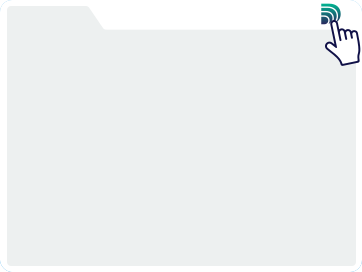
You can start using QuickDrivingDirections in just one click! Here’s all you need to know.

Directions & Printing
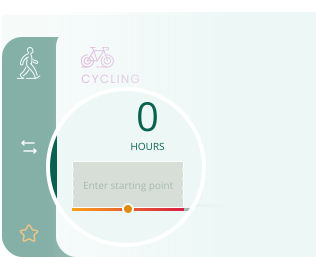
1
Find the Best Route
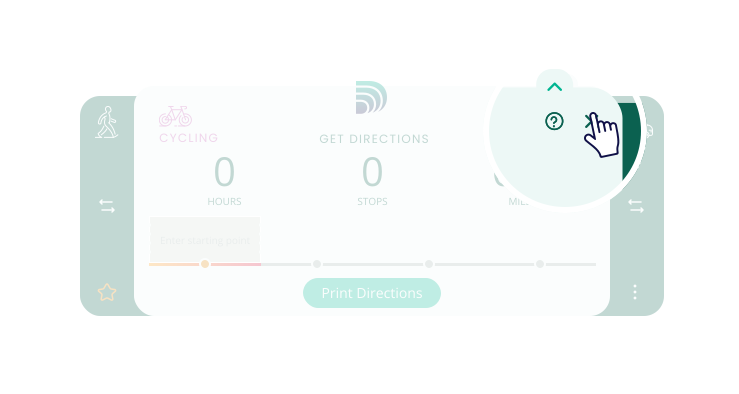
Enter your start and destination, then add as many stops as needed.
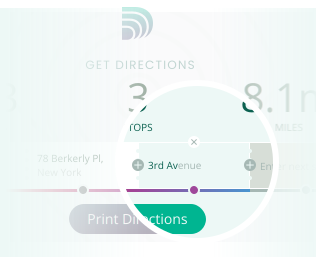
2
Adjust Your Route
Reorder stops by dragging them. Click + to add a stop, or hover and click X to remove one.
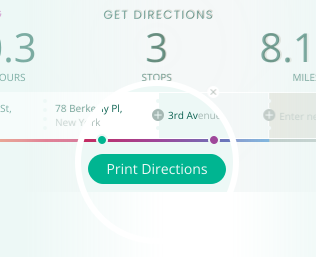
3
Print Your Directions
The final step! Click "Print Directions" to download or print your directions with step-by-step navigation.
4
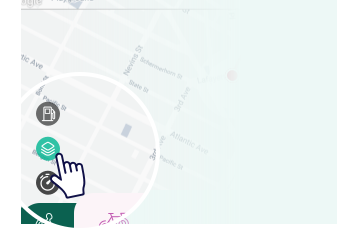
Start maps in satellite view
Change your default view by enabling maps in satellite view.
5
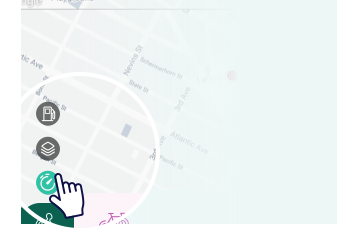
Current traffic
Trying to avoid traffic? Check your local traffic before heading on your way.
6
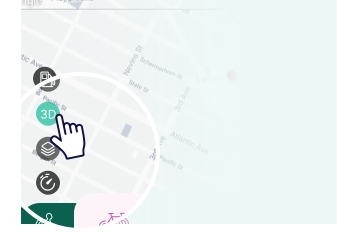
3D View
Experience your route in detail with the 3D view, offering a dynamic, lifelike perspective of the map.
7
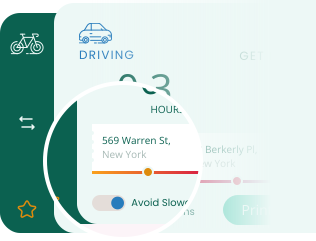
Avoid slowdowns
Steer clear of traffic jams - simply turn on the Avoid Slowdowns option.
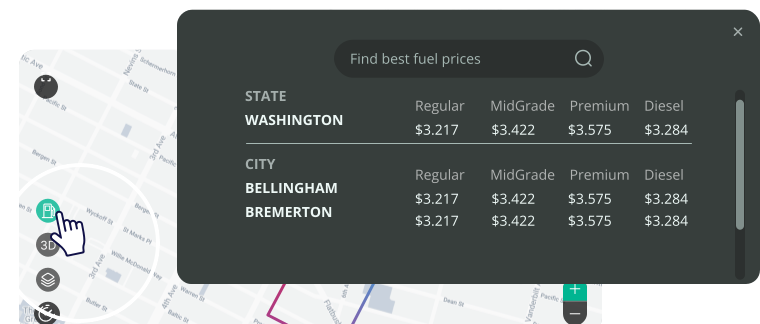
8
Gas price
It allows you to find the cheapest gas along your route and plan where to fill up.