Smart routes for every journey!
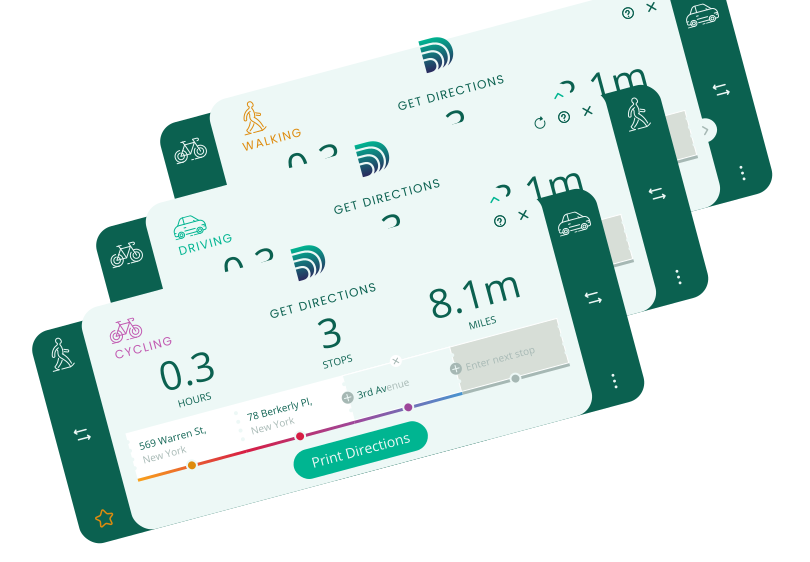
Plan every journey with ease—whether you’re walking to the store, biking to work, or driving cross-country. QuickDrivingDirections introduces the simplest way to find and print directions to take with you.
Keeping it Simple
Whether you’re traveling by foot, bicycle or car – directions can be found in a snap! All you have to do is enter your current location, where you’d like to go and then select your mode of transportation. Once directions appear, click ‘Print Directions’ - that’s it!

walking
Getting Walking Directions
To select ‘Walking’ as your mode of transportation, click on the pedestrian icon. QuickDrivingDirections will present a route that includes walking friendly paths and terrain.

cycling
Getting Cycling Directions
To select ‘Cycling’ as your mode of transportation, click the bicycle icon. QuickDrivingDirections will know to adjust the to accommodate a bike friendly route.

driving
Getting Driving Directions
Traveling by car is the default mode of transportation. But if you’ve previously selected ‘Walking’ or ‘Cycling,’ all you have to do is click the car icon to find the fastest route to your destination.
Accessing the Widget
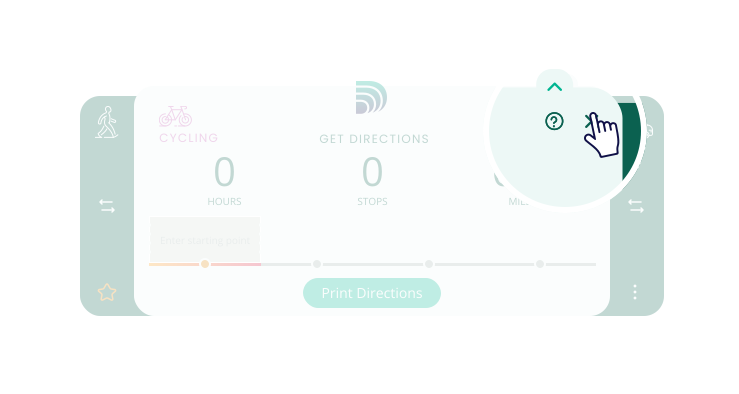
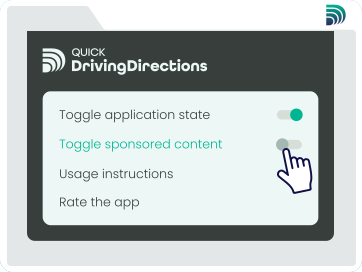
You can start using QuickDrivingDirections in just one click! Here’s all you need to know.


No Signal? No Problem
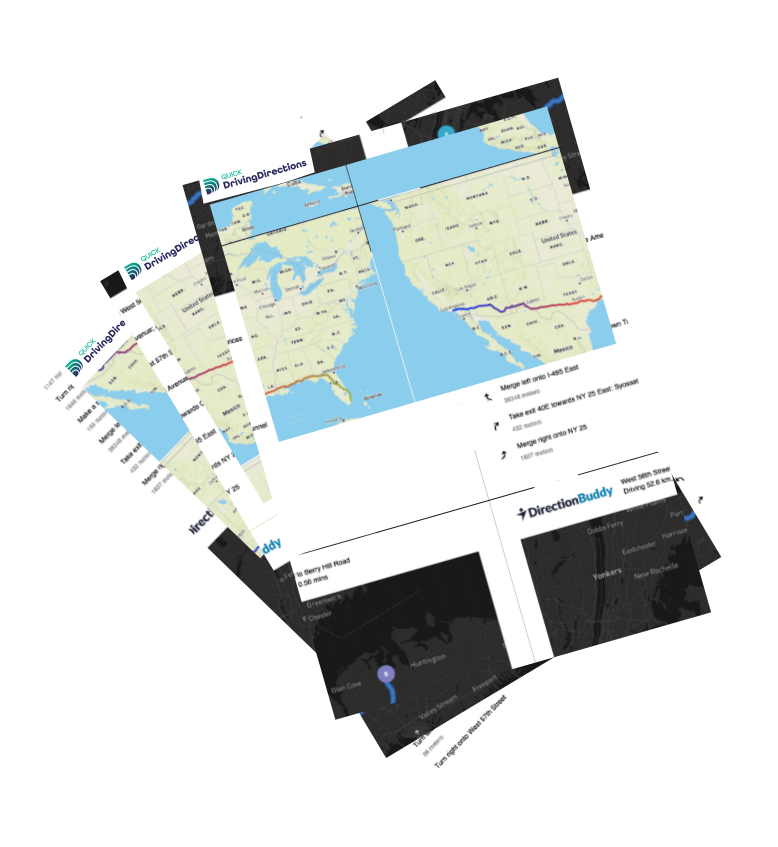
By printing out your directions, you eliminate the need to rely on technology and GPS signal. Keep turn by turn directions in hand for a safe and reliable way to your destination.
Directions & Printing
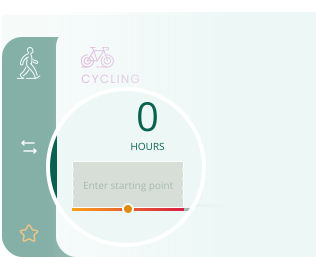
Find the Best Route
Enter your start and destination, then add as many stops as needed.
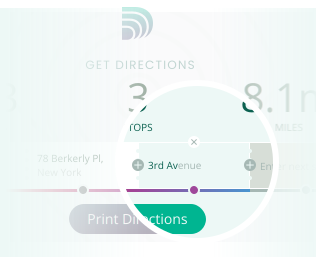
Adjust Your Route
Reorder stops by dragging them. Click + to add a stop, or hover and click X to remove one.
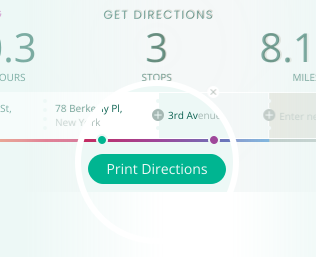
Print Your Directions
The final step! Click "Print Directions" to download or print your directions with step-by-step navigation.
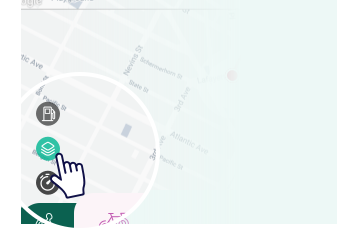
Start maps in satellite view
Change your default view by enabling maps in satellite view.
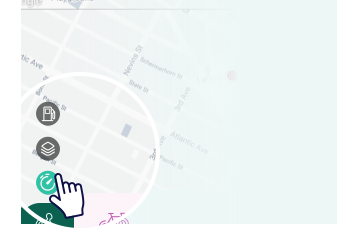
Current traffic
Trying to avoid traffic? Check your local traffic before heading on your way.
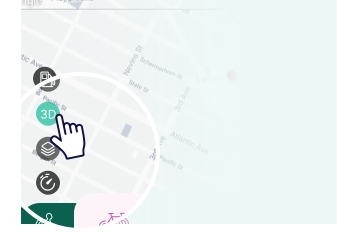
3D View
Experience your route in detail with the 3D view, offering a dynamic, lifelike perspective of the map.
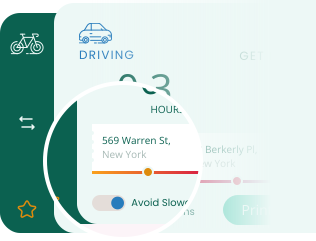
Avoid slowdowns
Steer clear of traffic jams - simply turn on the Avoid Slowdowns option.
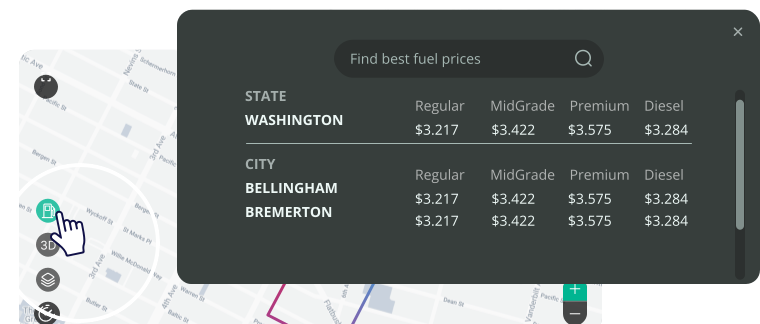
Gas price
It allows you to find the cheapest gas along your route and plan where to fill up.
Are You Ready to Plan Your Next Road Trip?
QuickDrivingDirections makes it easy for you to find and print directions. Start planning today!